

You can sell courses on WordPress by adding a course plugin, also called an LMS plugin, to a self-hosted WordPress site, and connecting a payment provider such as Stripe. WordPress gives you full control, but you put the pieces together yourself: hosting, theme, course plugin, payments, and updates for all of them.
That control is the real reason to choose WordPress. The cost is upkeep. Below: the parts you need, a compact comparison of three plugins, a walkthrough with one of them, what it costs on the vendors’ own pages, and when a hosted platform is less work.
What you need to sell a course on WordPress
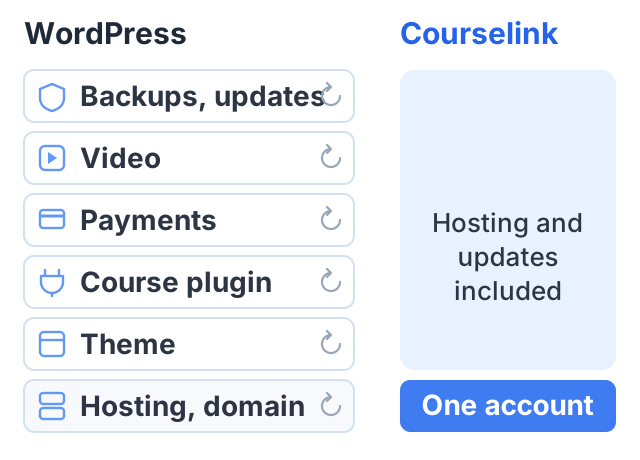
A WordPress course site is a stack of separate parts. Each one is chosen, paid for and updated on its own.
- Hosting and a domain. WordPress itself is free software, but it needs a server. Prices vary a lot between hosts, so compare a few. Video-heavy courses need either strong hosting or an outside video host.
- A theme. It controls how the site looks. Many course plugins work with most themes, but check before you buy.
- A course plugin. This adds courses, lessons, quizzes and student accounts to WordPress.
- A way to take payments. Some plugins connect to Stripe or PayPal directly. Others use WooCommerce, which is a separate shop plugin.
- A place for video. Large video files on a normal web host can be slow. Many creators host video on YouTube, Vimeo or a paid video host and embed it.
- Backups, security and updates. WordPress core, the theme and every plugin get updates. Someone has to apply them and check nothing breaks.
Three course plugins, and what they cost
These prices come from each vendor’s own pricing page, checked in October 2026. They change, so check the page before you buy.
| Plugin | Free version | Paid price for one site | The detail that matters |
|---|---|---|---|
| LearnDash | No | $350 a year, as a bundle with other plugins | No free way to try it on your own site |
| Tutor LMS | Yes, “the full Tutor LMS core is free forever” | $199 a year, or $499 once, for one site | Its own pricing page lists native eCommerce with Stripe, PayPal, Razorpay and others, so no separate shop plugin is implied |
| LifterLMS | Yes, a free core with quizzes and certificates | Earth bundle, normally $398 a year, first year at half price | The payment add-ons for Stripe, PayPal and WooCommerce come with the paid bundle |
Pick one and stay with it: moving courses between course plugins later is real work, and it is the decision this whole setup turns on.
A walkthrough, using Tutor LMS
Any of the three works. This walkthrough uses Tutor LMS for one reason: its core is free, so you can build the whole course and see the student side before you decide whether to pay for anything. Swap in another plugin and only steps 3 and 4 change.
- Get hosting and a domain, and install WordPress. Many hosts install it for you.
- Choose and install a theme. Pick one your course plugin supports.
- Install the course plugin from the WordPress plugin directory and run its setup. A course in any of these plugins has the same shape: a course holds sections, sections hold lessons, and a lesson holds a video, text and attachments. Build one short course end to end before you import everything.
- Set up payments. Tutor LMS’s pricing page lists native eCommerce with gateways including Stripe, PayPal and Razorpay, so you connect the gateway inside the plugin; with LifterLMS you buy the bundle that includes the payment add-on, and some setups use WooCommerce instead. Confirm which route your plugin and plan actually give you before you build the course, because it decides where the checkout lives. Stripe’s standard US rate is 2.9% + 30¢ per successful card charge, on Stripe’s pricing page.
- Decide where your video lives. Upload to your host, or embed from YouTube, Vimeo or a video host.
- Build the course. Create the course, add lessons in order, attach files and add quizzes.
- Set a price and create the sales page. Most plugins add a course page with an enroll or buy button.
- Test the whole flow. Buy the course with a test card, then log in as a student on a phone.
- Set up backups and a security plugin, and plan a time each month for updates.
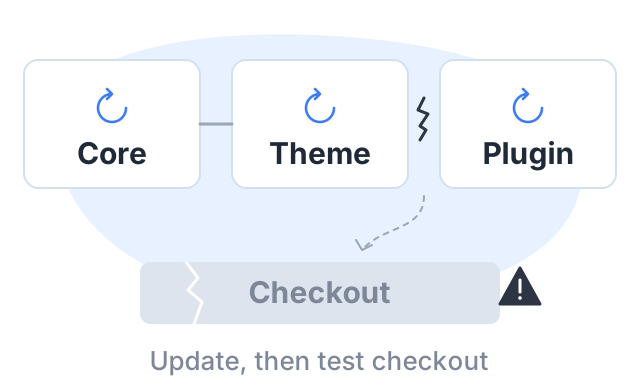
Step 9 is the one people skip, and it is the one that causes trouble later. A plugin update that conflicts with your theme can break checkout without warning.
A worked example: the first year
Say you want one course on your own domain. Here is the software cost for the first year, before hosting and the domain, which depend on your choices.
| Course software, first year | Supports a custom domain? | Platform cut of sales | |
|---|---|---|---|
| WordPress + LearnDash | $350 | Yes, on the domain you register | 0% |
| WordPress + Tutor LMS Pro | $199 | Yes, on the domain you register | 0% |
| WordPress + LifterLMS Earth | $199 in year one, then $398 | Yes, on the domain you register | 0% |
| Courselink Lite, billed yearly | $190 | No, uses yourname.course.link | 0% |
| Courselink Standard, billed yearly | $490 | Yes, on the domain you register | 0% |
No row includes the domain itself: a domain is registered and renewed with a registrar in every one of these setups, and the WordPress rows do not include hosting either.
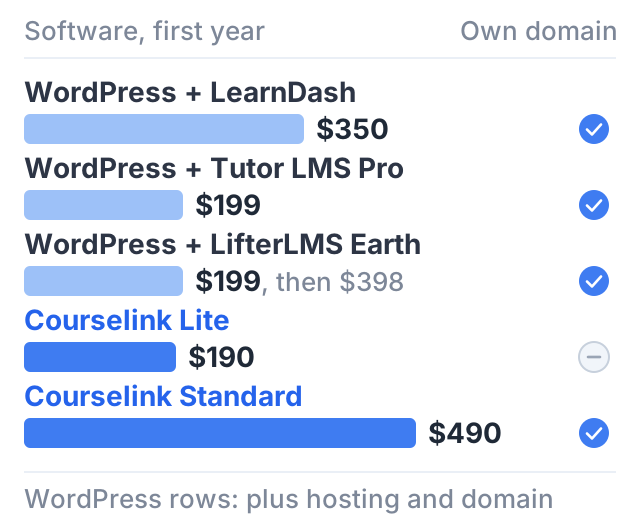
On WordPress you also pay for hosting, the domain and any theme or video host. On Courselink, hosting is part of the plan, and YouTube lessons and watch hours are unlimited on every plan.
Card fees are the same on both. A $49 sale through Stripe costs about $1.72 at 2.9% + 30¢, whichever platform sends it.
If a custom domain matters to you, the comparison with WordPress is Courselink Standard at $490 a year, not Lite. Against that, a WordPress plugin can cost less in software, and the gap is paid back in your time instead.
Where WordPress wins
WordPress is a good choice in several cases, and it is better than Courselink at some things:
- You already have a WordPress site with traffic. Your blog posts and your course live on one domain, and readers move from free content to the course without leaving.
- You want full control of the site. You own the server, the database and the code, so you can change any part of how the site works rather than waiting for a feature. (Your host, your payment provider and every plugin still have their own terms.)
- You need a very specific feature. WordPress has a plugin for almost anything. A hosted platform has only the features it has built.
- You expect a large number of students. Courselink plans have student limits: 1,000 on Lite, 5,000 on Standard, and unlimited only on Plus at $99 a month. A WordPress plugin has no such plan limit, though your hosting must handle the load.
Where a hosted platform is less work
- You are starting from zero. There is no host to choose, no theme to match, no plugins to keep in step.
- You do not want to be the IT person. Updates, backups and security are the platform’s job.
- Your lessons are already on YouTube. You can import them instead of embedding them one by one.
The Courselink way, side by side
| WordPress | Courselink | |
|---|---|---|
| Parts to set up | Hosting, theme, course plugin, payments, video, backups | One account |
| Lessons from YouTube | Depends on the plugin; often one embed per lesson | Paste a link or playlist; lessons import in order |
| Payments | Plugin’s own gateway, or WooCommerce | Your own Stripe or Razorpay account, from Lite |
| Platform cut of sales | 0% | 0% on every plan |
| Your own domain | Yes | Standard ($49 a month) and above |
| Updates and security | Your job | Ours |
| Control over the code | Full | None |
Courselink is a hosted course platform: paste your YouTube links or a playlist and the lessons import in order, with PDFs, quizzes and certificates included rather than installed. You can build a course free, but the Free plan cannot sell — charging starts on Lite at $19 a month, which also adds coupons and invite-only courses, and a custom domain starts on Standard. Students pay into your own Stripe or Razorpay account and Courselink takes 0% of every sale. The full list is on the pricing page.
If you already run WordPress well, a plugin may suit you. If you would rather teach than maintain a server, start with a hosted platform. For more options, read the guide on where to sell courses or the one on white-label course platforms.
Sources
- LearnDash pricing
- Tutor LMS pricing: the free core, the one-site prices, and the payment gateways its native eCommerce lists.
- LifterLMS pricing: bundle prices, what the free core includes, and which bundle adds payment add-ons.
- Stripe pricing: the standard US card rate.
Courselink plan details come from our own pricing page. This page does not quote hosting or domain prices, because they vary too much between providers to be useful as one number.