
Feature
See what sold, and who it sold to
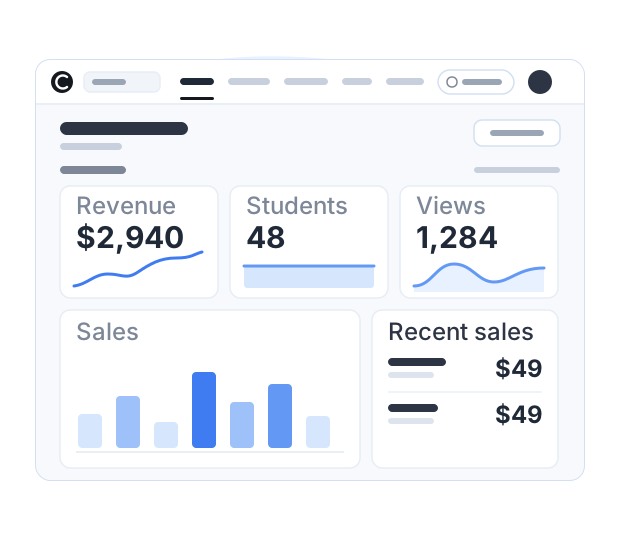
Your dashboard opens on revenue, students and views, with the sales behind them a click away. Connect Google Analytics and Meta Pixel when you want to know where the buyers came from.
No credit card required
Available on a paid plan. See plans →
What you see before you set anything up
There is no reporting tool to configure and no dashboard to build. The home screen of your Courselink dashboard already carries an Analytics section covering the last 365 days, and it fills itself as you sell.
Three headline cards
Revenue, students and views, each with a sparkline of how it has moved, and a trend badge on the ones that have something to compare against.
A sales chart
Succeeded and failed charges plotted as two series, so a run of failures shows up as a shape rather than as a surprise at the end of the month.
Recent sales
The latest purchases with the student, the course and the amount, and a View all link through to the full history.
Your student list
Every student with their phone, the courses they are enrolled in and the date they joined, searchable and filterable by course or by join date.
Every transaction, in one table
Sales › Transactions is the record behind the headline numbers: one row per charge, with the student, the course, the date, the amount, the status and the receipt. It is the screen to open when a student says they paid and cannot get in, and the screen to export when someone asks you for figures.
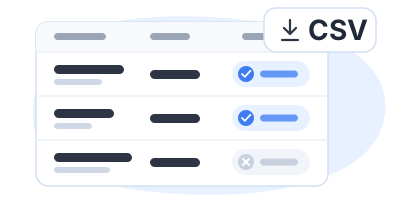
- Find one sale. Search by customer, or narrow the table to a range of sale dates.
- Tell succeeded from failed. The status column says which is which, and a failed charge has no receipt against it, so there is nothing ambiguous to interpret.
- Open a receipt. Straight from the row, when a student asks you for one.
- Export CSV. Take the whole table into a spreadsheet, your accounting software or your own reporting. A Coupons tab sits beside Transactions for the codes you have issued.
What Google Analytics and Meta Pixel add
Your dashboard knows what happened on your site. It does not know what happened before that: which post, video, newsletter or ad sent the person who ended up buying. That is the gap the two tracking integrations close, and it is the reason to connect them before you spend anything on reaching people.
Google Analytics
Visitor and conversion tracking: how people arrive at your course site, which pages they look at, and which of those visits turn into something.
Meta Pixel
Ad tracking and retargeting, so a Facebook or Instagram campaign can be measured against sales rather than against clicks alone.
Both live under Settings › Integrations, where each one takes the ID from your own Google or Meta account. Connect them when you start selling, so the measurement arrives with the sales rather than after them.
What these numbers answer, and what they do not
Worth being plain about, because course platforms are not always. Between the dashboard and the two integrations you can answer what sold, when it sold, who bought it, which charges failed, and which channel the visit came from. That covers most of the decisions a small course business actually makes: what to price, what to promote, and where to put the next hour of work.
What these numbers are not is a study of how people watch. There is no heatmap of a video, no report on where attention dropped inside a lesson, and no survey built in. Students see their own progress in the lesson player, as a progress bar and a count of lessons completed; if you want to know why someone stopped, the fastest route is still to email them and ask.
For a course that is already selling, that rarely blocks anything. If detailed learner tracking is the thing your organization runs on, ask us what the dashboard reports today before you move your lessons across.
More on this for your kind of course: For Instagram creators. Every plan and limit is on the pricing page.
Analytics questions
No. The Analytics section on your dashboard home covers the last 365 days and fills itself as you sell. Google Analytics and Meta Pixel are optional, for tracking where visitors came from.
Yes. Sales › Transactions has an Export CSV button, and the Students table has its own, so you can take either list into a spreadsheet or your accountant’s software.
Yes. Every row in the transactions table carries a status, succeeded or failed, and the sales chart on your dashboard home plots the two separately. A failed charge has no receipt against it.
Yes. Both the sales table and the students table have an Export CSV button, so you can take the rows into a spreadsheet and count them however you like.
More questions? Visit our Help Center
Your course could be live today
Start with the videos you already have. It is free to build, and Courselink never takes a cut of your sales.
Create free course- Free to build
- No credit card
- 0% commission