When a customer completes a course, Course.link can automatically generate a certificate. You can configure this in each course’s settings.
Upload certificate template
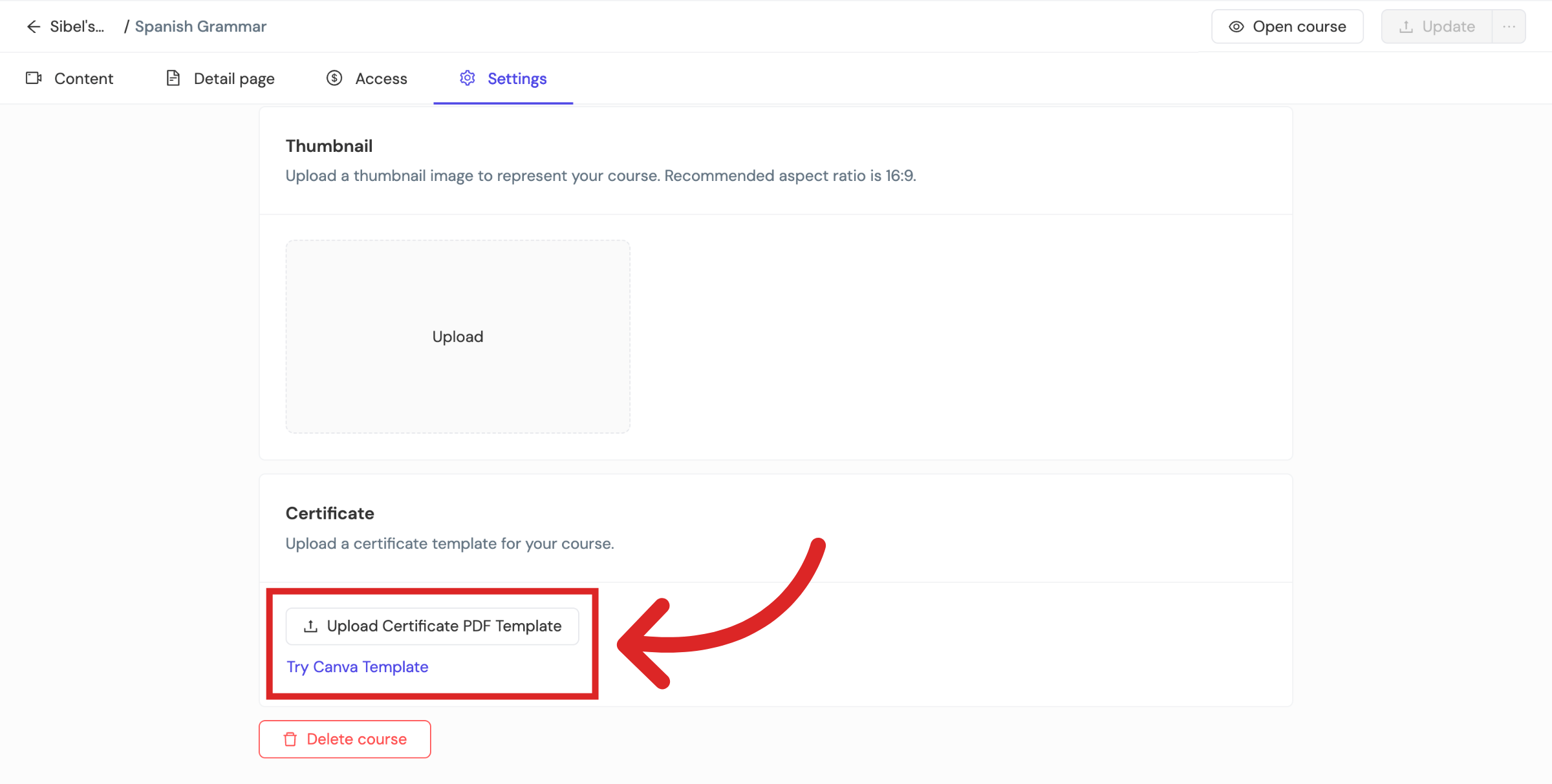
Go to Courses, select the course, open Settings, and scroll to the bottom to find the Certificate option.
Here you can either upload your own PDF template or create a new one using Canva.
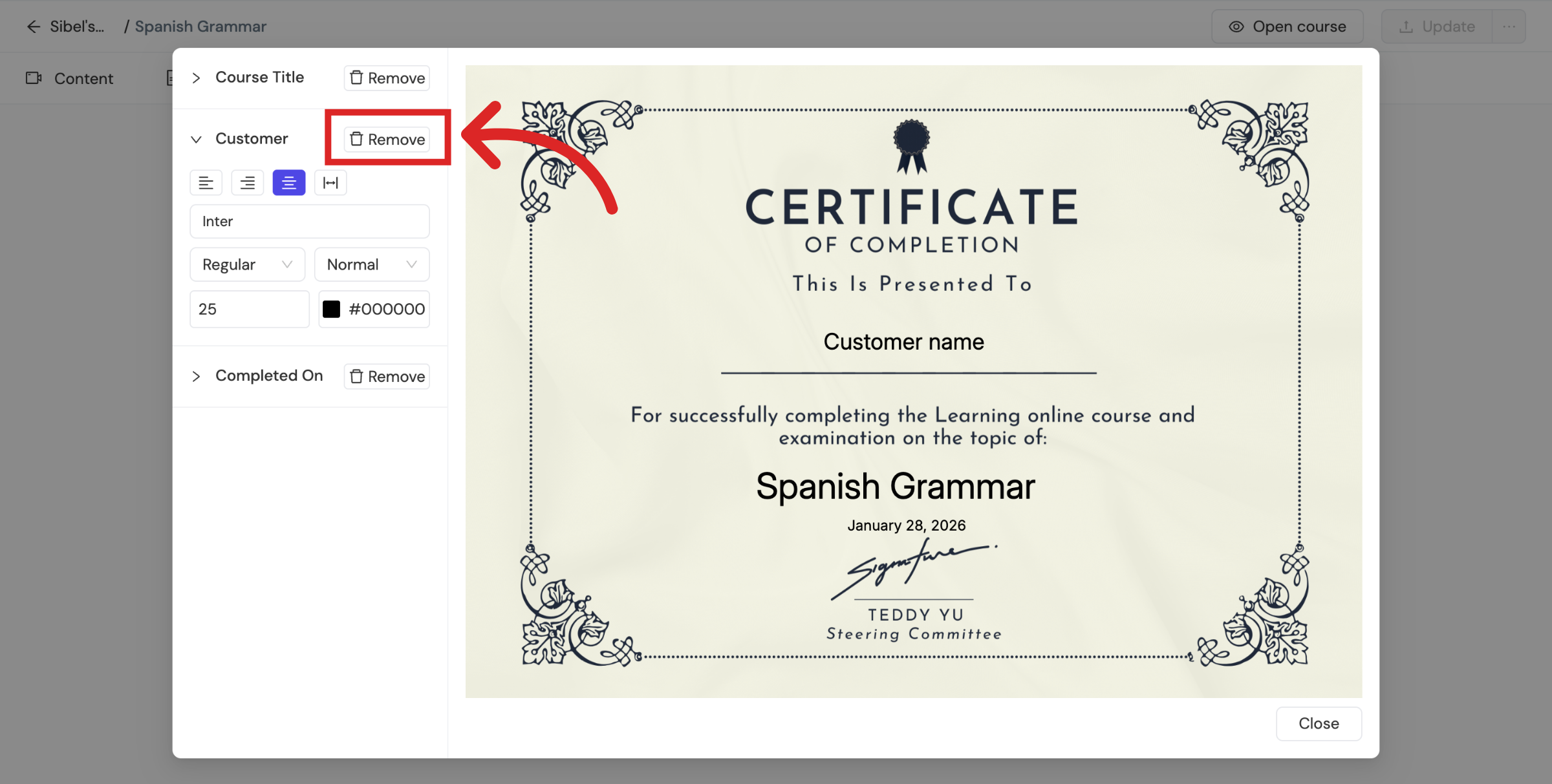
After you upload the certificate PDF template, you can configure the Course Title, Customer, and Completed On fields.
Course Title | Name of your course |
Customer | Name of your customer |
Completed On | Completion date |
These details are automatically added to the attached certificate template when a customer completes the course.
After uploading the certificate, select where each detail should appear. Click Insert next to each field to place it on the certificate.
You can customize the alignment, font type, size, and color for each field.
If you would like to remove a field, click Remove.
How your customers can download their certificates
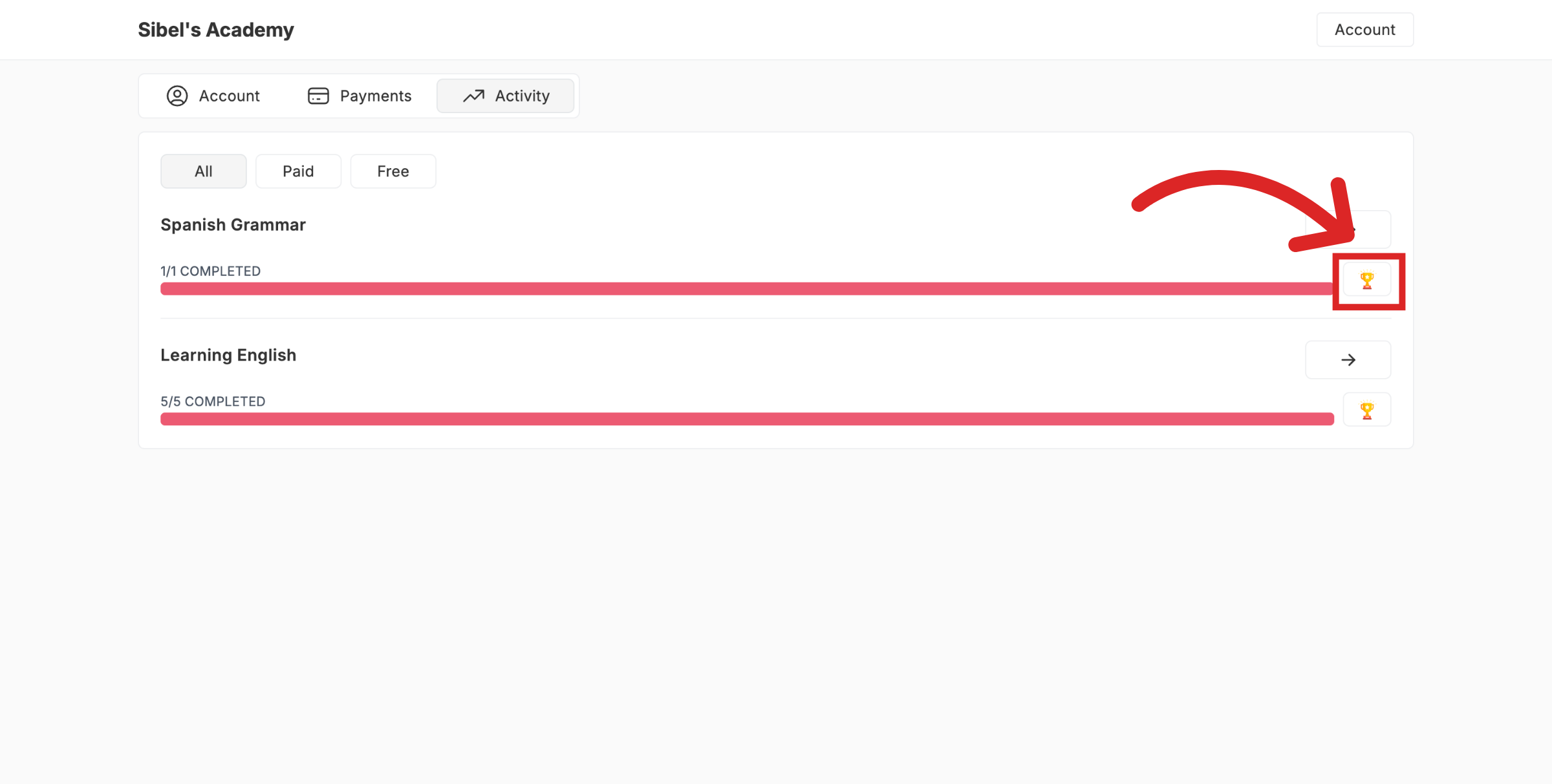
When customers login to their account and visit the Activity tab, they will find their course activities alongside with the certificates for the courses completed.
Click on the trophy icon to download the certificate.
The customer will be able to see the certificate with their details failed inside the template.
Still need help?
Contact us