
Wati helps businesses manage customer communication on WhatsApp. By integrating Wati with your Course.link website, you can automatically add users as contacts when they log in to your course.link website.
In this guide, we’ll show you how to connect Wati to your Course.link website step by step.
Connect Wati to Course.link
Log in to your Course.link dashboard and go to Settings → Integrations.
Locate Wati and click Connect.
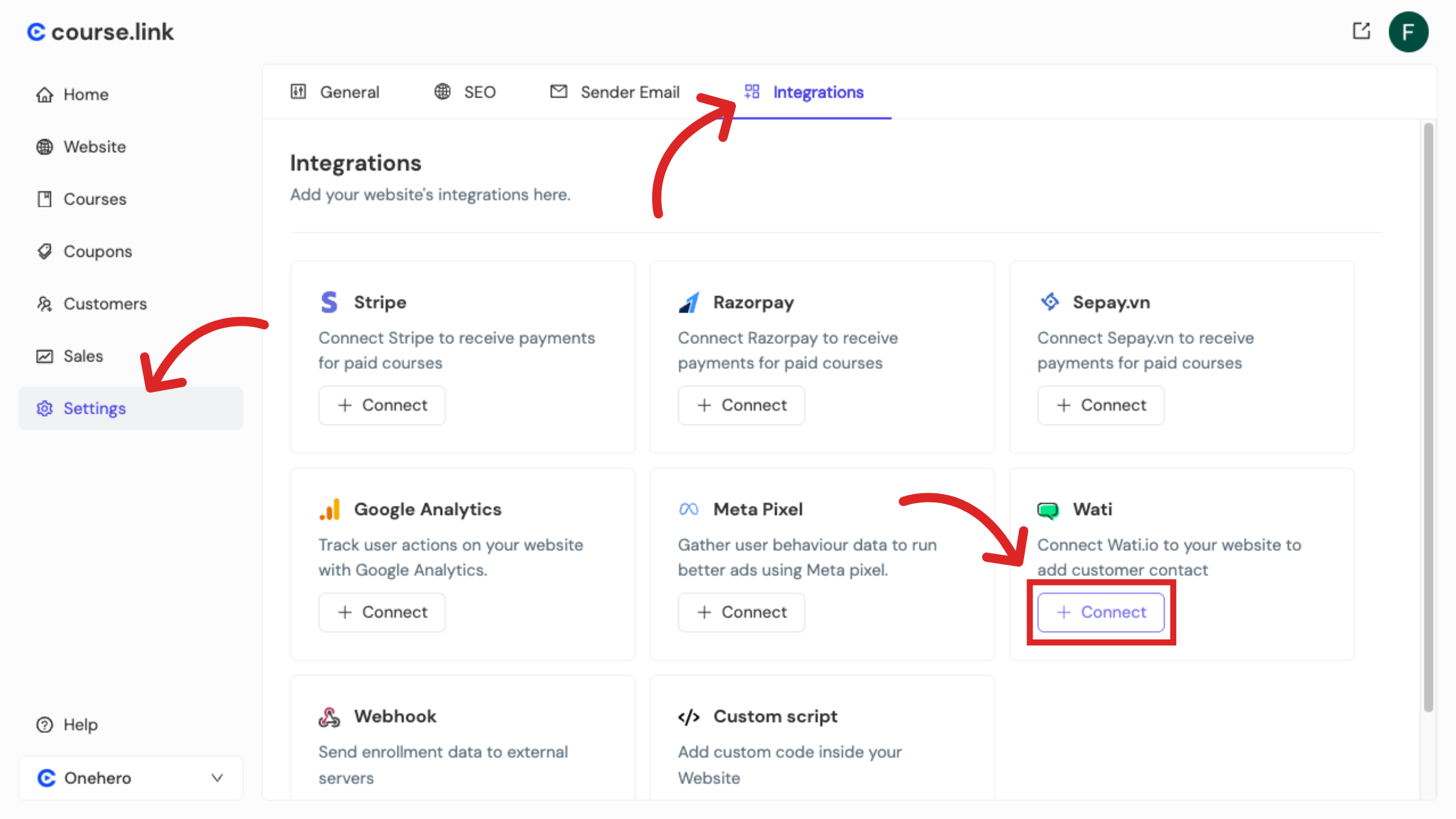
You will see a field to enter your Wati access token and API Endpoint URL.
Next, log in to your Wati dashboard. Go to More → API Docs.
Copy your Access Token and API Endpoint.
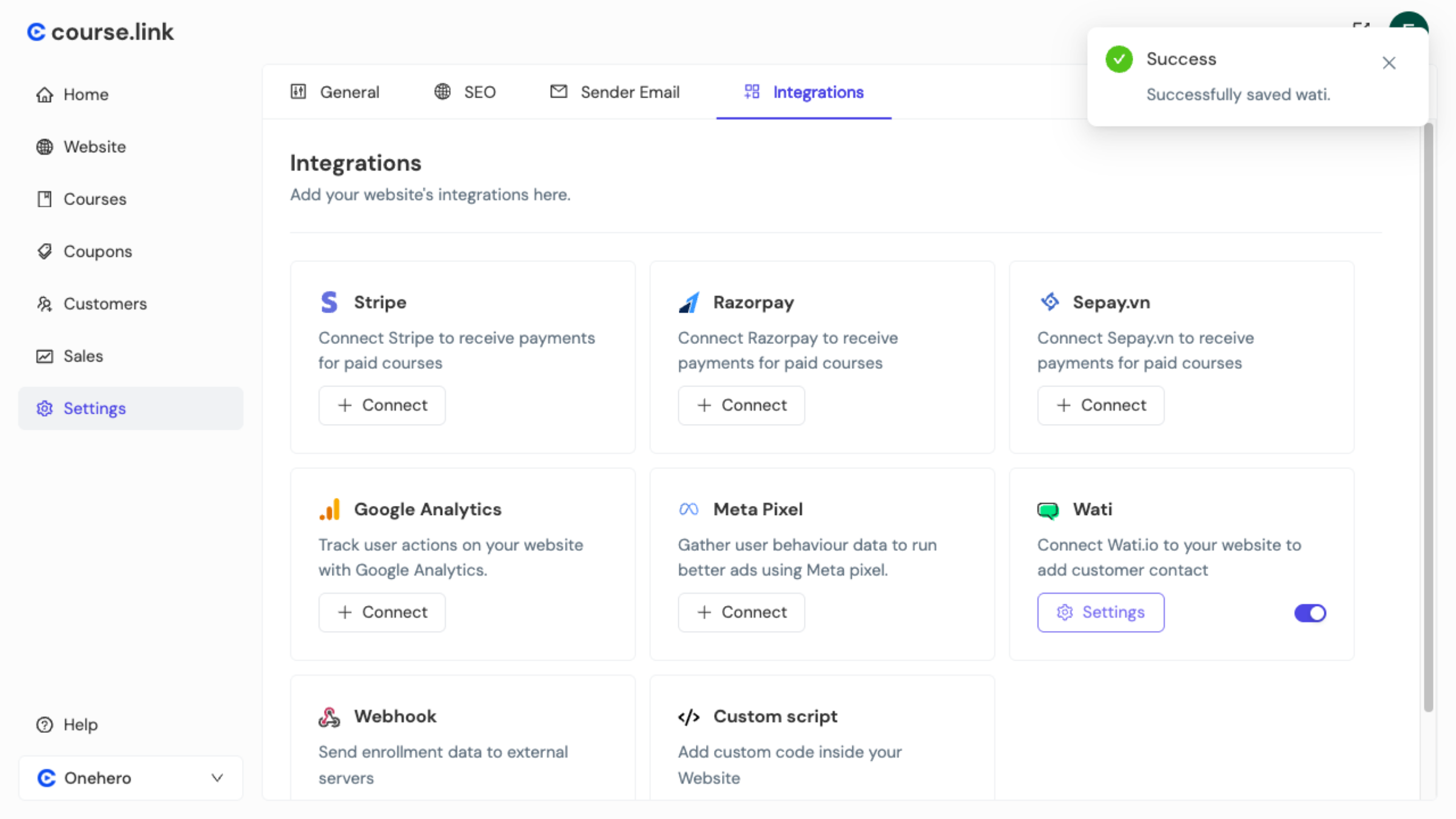
Return to the Course.link dashboard, enter the Wati Access Token and API Endpoint URL in their fields, then click Save.
Once saved, Wati is successfully connected to your Course.link website.
Confirm the Integration
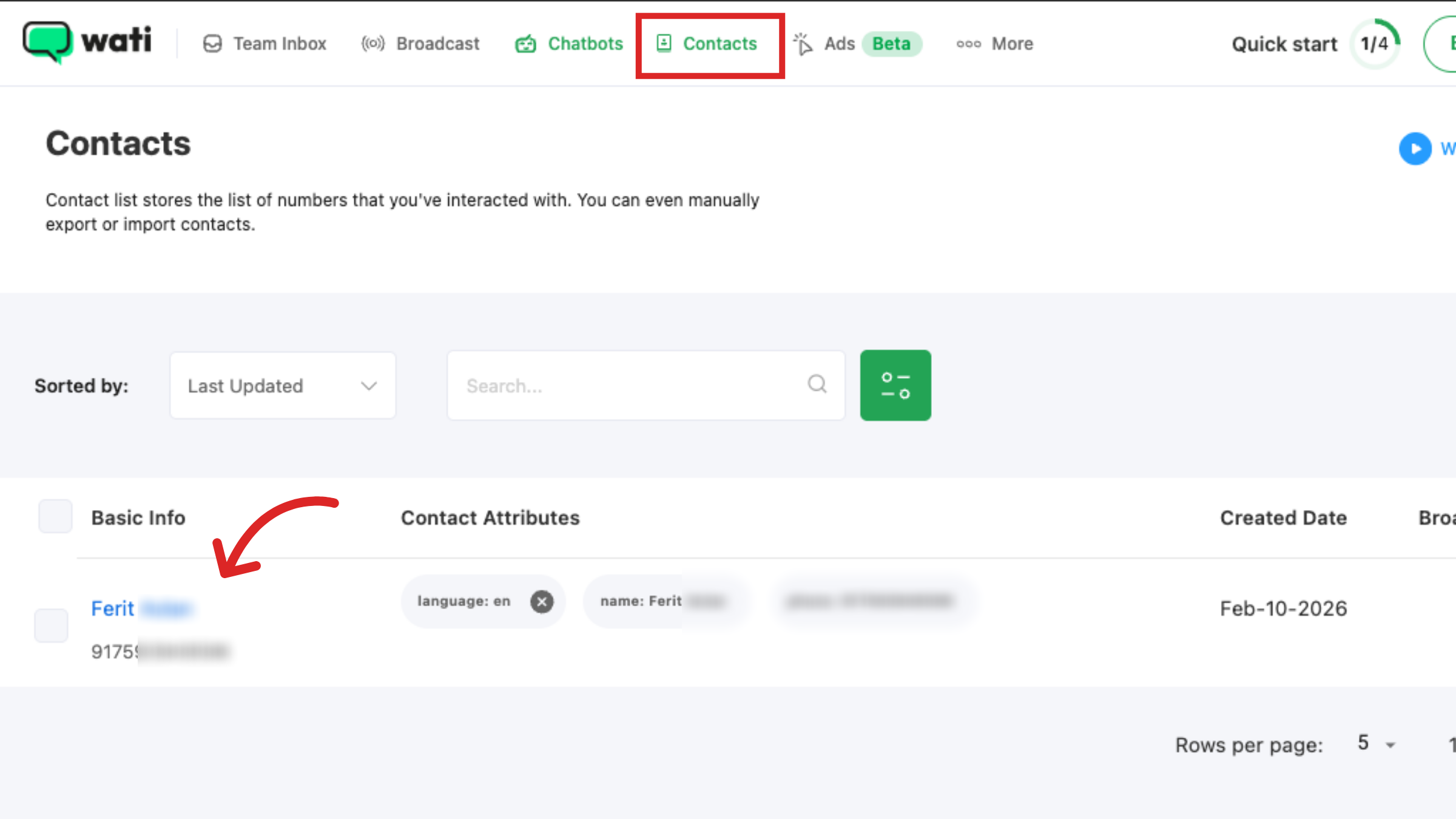
After the integration is complete, when a user registers on your Course.link website, their contact details will be automatically added to the Contacts section in your Wati dashboard.
This confirms that the Add Contact to Wati option is working as expected.
Note
If you change your Wati account password, the current access token will expire. In that case, copy the new access token from your Wati dashboard and update it in your Course.link settings.
For more details, refer to the official Wati support documentation.
Still need help?
Contact us